
Architectural rendering, inside Claude and ChatGPT
Connect rendershop to your AI assistant and render sketches, edit facades, stage rooms, upscale, and animate, all from the chat. Start from a sketch, a photo, a SketchUp or Revit view, or an image already in your projects.
 Claude
 ChatGPT
https://rendershop.ai/api/mcpWorks on a free account · Same credits as the app · Asks before expensive videos
Clauderendershop connectedrender_image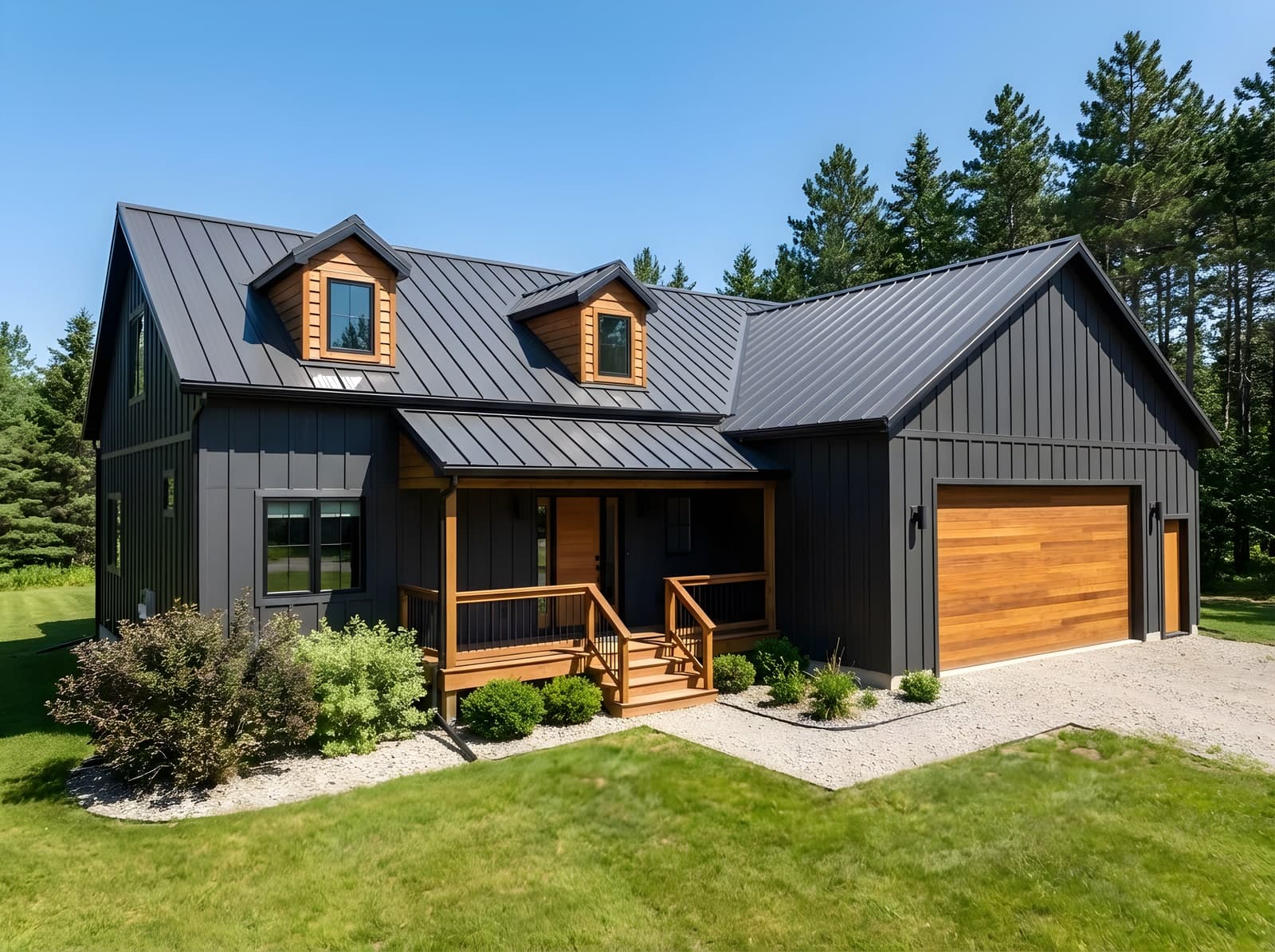
Here's your render, saved to your rendershop project. Want a dusk version with the interiors lit, or an upscale to 4K?
How it works
rendershop runs an MCP server, the open standard AI assistants use to work with other apps.
Connect once
Add the rendershop server URL as a connector in your assistant and sign in with your rendershop account.
Describe what you want
Brief it like you'd brief a visualizer. Upload a sketch or photo right in the chat, or start from any image in your projects.
See it in the chat
The render appears in the conversation with a download button, and every image is saved to your rendershop library.
Try it
Copy a prompt into your assistant once rendershop is connected. Each card shows the tool it uses.
 BeforeAfter
Sketch to render
render_image“Render my house sketch photorealistic, bright midday light, natural landscaping, at 2K.”
 Before
 After
AfterDusk variation
render_image“Now a twilight version of the same view: deep blue sky, warm interior lights glowing through the windows.”
 Before
 After
AfterInterior from a sketch
render_image“Render this kitchen sketch as a photorealistic interior with warm oak cabinets and soft daylight.”
 Before
 After
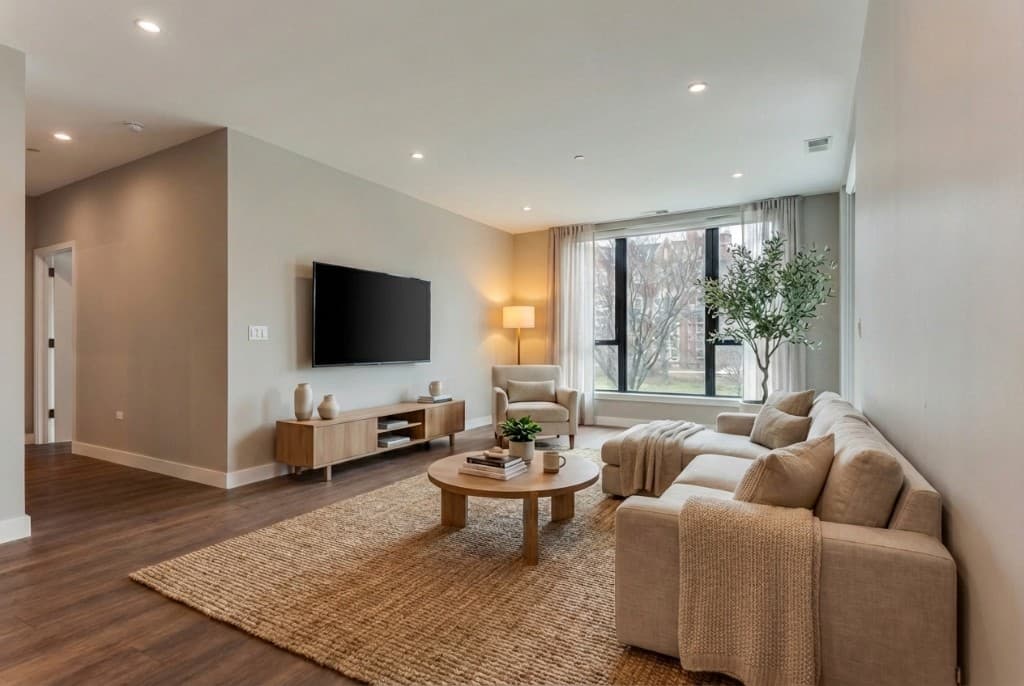
AfterVirtual staging
stage_room“Stage this empty living room in a Scandinavian style with a neutral, warm palette.”
 Before
 After
AfterMaterial swap
edit_image“Change the facade to warm vertical timber cladding and keep everything else exactly the same.”
 Before
 After
AfterUpscale to 4K
upscale_image“Upscale that render 4x so I can print it for the client meeting.”
What your assistant can do
Twelve tools, running the same models and prompts as the rendershop studio.
Render
10 creditsTurn a sketch, SketchUp/Revit/Blender view, or photo into a finished render that keeps your geometry. Set style, lighting, camera angle, weather, surroundings, and resolution up to 4K.
render_imageEdit
10 creditsChange specific things and keep everything else identical: swap a material, remove an object, add a window. Pin changes to exact spots.
edit_imageVirtual staging
10 creditsFurnish an empty interior by room type, style, palette, and density without touching walls, floors, windows, or the camera.
stage_roomUpscale
1 creditEnlarge any result 2× or 4× with added detail for print and large screens.
upscale_imageVideo
5 credits / secondAnimate a still render into a 4–12 second clip with a camera move: drone, orbit, fly-over, pan, or zoom.
generate_videoUpload a photo
FreeShows an upload box right in the chat so you can bring in a photo or sketch from your computer or phone.
create_upload_linkGet upload
FreePicks up the photo you just uploaded so the assistant can render, edit, or stage it.
get_uploadCheck a job
FreeWaits for a longer render or video to finish and shows the result in the chat.
get_jobList projects
FreeBrowses your rendershop projects, newest first.
list_projectsProject images
FreeLists every image in a project so an earlier render can be the starting point for a new one.
list_project_imagesSave to project
FreeFiles a result into any of your projects. Results are saved automatically; this is for moving them around.
save_to_projectAccount
FreeChecks your plan and how many credits you have left this month.
get_accountConnect in a minute
You need a rendershop account. A free one works to start.
- 1
Open connector settings
In Claude, go to Customize → Connectors and choose Add custom connector. - 2
Add rendershop
Name it rendershop and paste the server URL:https://rendershop.ai/api/mcp - 3
Sign in
Click Connect and sign in with your rendershop account. No API key or client secret needed. - 4
Ask for a render
Start a new chat and describe what you want. The first time an upload box or result appears, Claude asks to show the rendershop app. Choose Allow.
Works in Claude on the web, the desktop app, and mobile.
Your credits stay in your control
An assistant works on your behalf, so the connector is built not to surprise you.
Failed renders are refunded
If a generation fails, its credits go back to your balance automatically, just like in the app.
Videos need your OK
Videos cost the most, so the assistant must confirm the price. rendershop refuses any video that would cost more than you agreed to, before charging.
Rate-limited per account
Generations are capped per minute on each account, so a runaway loop can't drain your credits.
Only your account
The connector signs in as you and only sees your projects. Upload links expire after 15 minutes and work once.
Same credits as the app
Chat requests use your normal rendershop credits at the same rates. No separate billing.
Disconnect anytime
Remove the connector in your assistant's settings to end its access. Your projects stay in rendershop.
Credit amounts for each plan are on the pricing page.
Questions
Render from your next conversation
Create a free rendershop account, then add the server URL to Claude or ChatGPT.
https://rendershop.ai/api/mcp