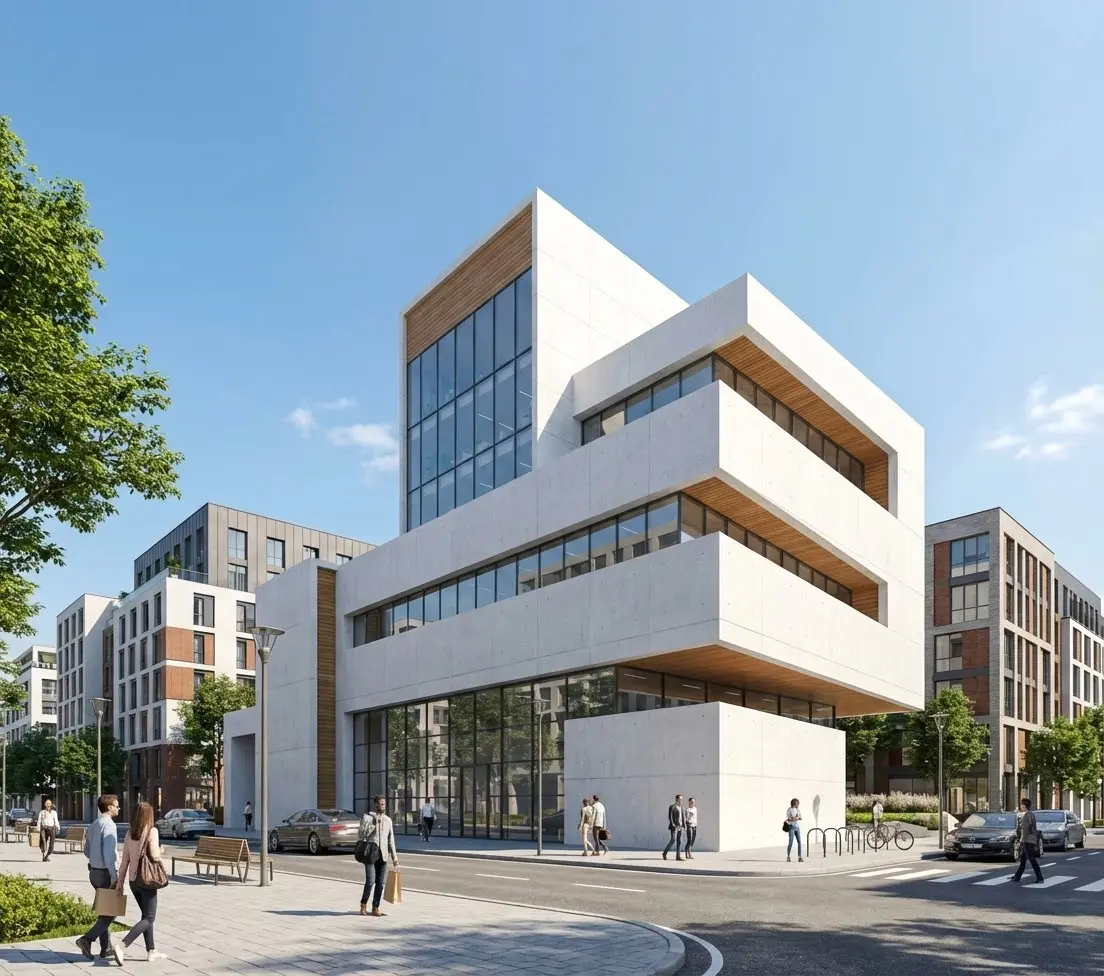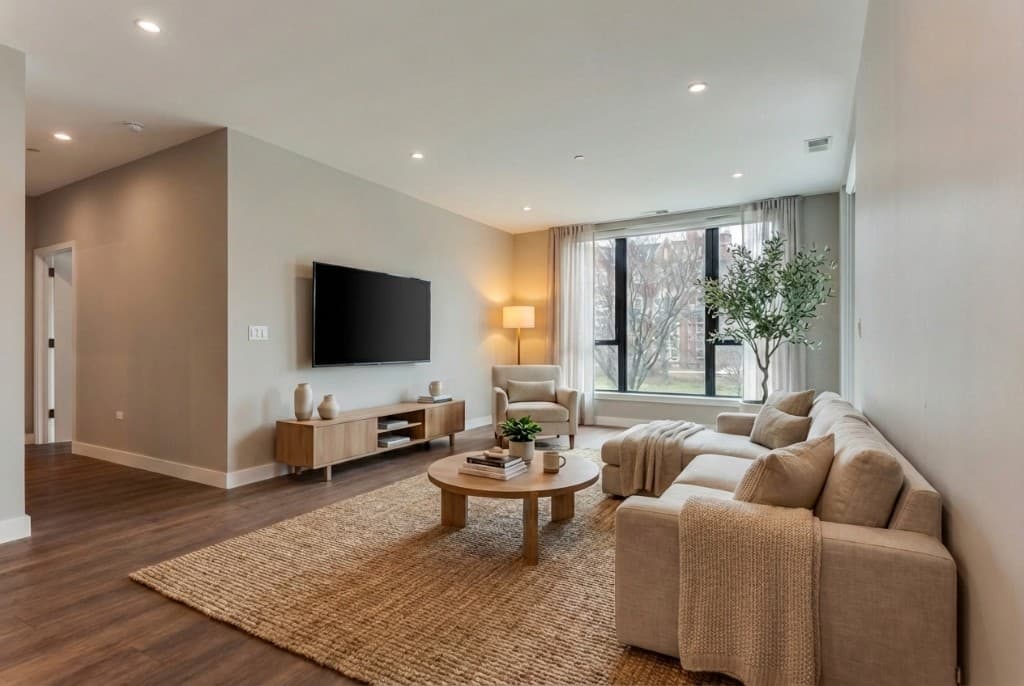
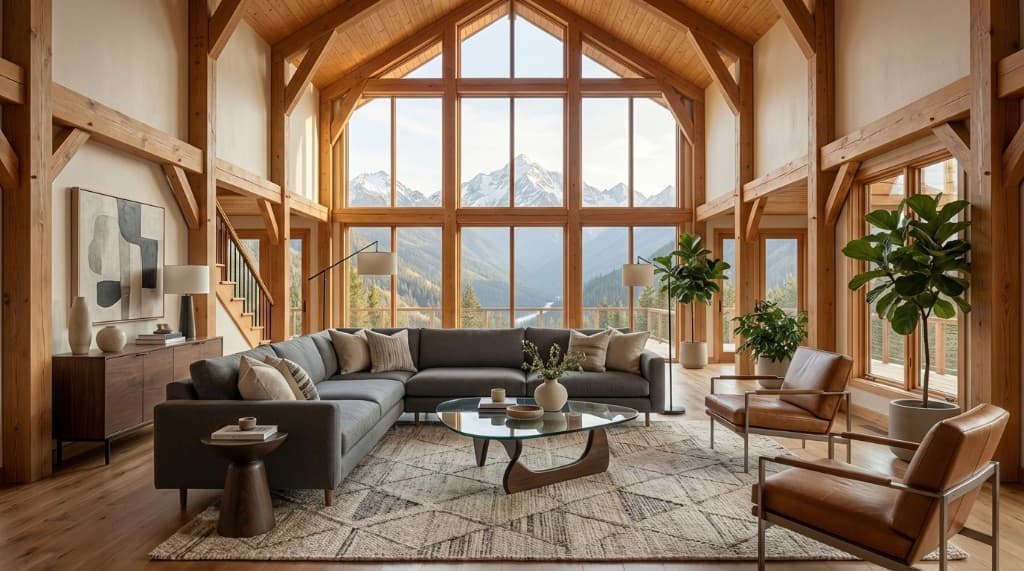
A client walks into a design meeting with a clear vision: "I want marble countertops, warm wood floors, and a white brick exterior." By the end of the meeting they're asking whether quartzite might look better, whether walnut is too dark, and whether the brick should be painted. You schedule another meeting for sample review. Then another. Three weeks later, a decision gets made — and it may or may not be the right one, because no one has ever seen all the options in context together.
AI material swapping changes that workflow entirely. Instead of waiting for samples, tile sets, and finish boards, you upload a photo of the actual space and describe the materials you want to see. The AI generates a photorealistic render showing precisely how those materials look in that room, under those lighting conditions — in about 60 seconds. Then you generate three more alternatives and lay them side by side for a client who can finally make a confident, informed decision.
This guide covers how AI material swapping works, what it can and can't do, how to get the most accurate results from your prompts, and where it fits into a professional design or construction workflow.
Why Material Selection Causes So Much Friction
The core problem is that materials look different in context than they do in isolation. A slab of Calacatta Gold marble looks stunning on a showroom floor. In a small bathroom with north-facing windows and warm wood cabinetry, it might feel cold and overpowering. A white oak floor looks light and airy in a Pinterest photo. In a kitchen with navy blue cabinets and brass hardware, it might disappear entirely.
Traditional visualization options don't solve this well:
- Physical samples are small and typically reviewed in showroom lighting, not the actual space. Clients routinely select materials from samples that look wrong at full scale and in context.
- 3D modeling solves the context problem but requires significant time and cost. A full 3D model of a kitchen with accurate material rendering can take 8–20 hours of a skilled artist's time.
- Manufacturer visualizer apps are limited to that brand's product catalog, use generic room templates, and look obviously rendered rather than photorealistic.
- Photoshop compositing requires technical skill and produces flat results without realistic lighting interaction — the material doesn't pick up the room's ambient light or cast shadows correctly.
AI material swapping addresses all four limitations simultaneously: it uses the actual room photo (real lighting, real proportions, real spatial context), produces photorealistic results, covers any material at all, and takes seconds rather than hours.
What AI Material Swapping Can Change
Modern AI rendering tools like Rendershop can realistically swap materials across every surface category you'd encounter in residential or commercial design. The key is learning how to describe each category clearly in your prompt. Here's a breakdown of the major surface types and how they behave in AI rendering:
| Surface Category | Examples You Can Swap | Key Prompt Details | AI Accuracy |
|---|---|---|---|
| Countertops | Marble, quartz, quartzite, granite, butcher block, concrete, soapstone | Stone name + veining description + finish (honed, polished, leathered) | Excellent |
| Flooring | Hardwood, LVP, tile, concrete, carpet, stone, cork | Wood species + finish tone + plank width; or tile format + grout color | Excellent |
| Wall finishes | Paint, plaster, wallpaper, tile, brick, shiplap, paneling | Color + texture + finish sheen (matte, satin, gloss) | Excellent |
| Cabinet finishes | Paint colors, wood stains, lacquer, two-tone combinations | Color (use specific names or hex descriptions) + door style + hardware finish | Very good |
| Exterior cladding | Brick, stone, stucco, siding, cedar, metal panel, fiber cement | Material + color + texture + coursing pattern (for masonry) | Very good |
| Roofing | Asphalt shingles, metal standing seam, clay tile, slate | Material + color + profile (flat, standing seam, dimensional) | Good |
| Hardware & fixtures | Brushed nickel, matte black, polished chrome, unlacquered brass, oil-rubbed bronze | Finish name + fixture style (minimalist, traditional, industrial) | Very good |
The surfaces where AI performs best — countertops, flooring, and wall finishes — are exactly the ones that drive the most client indecision. That's not a coincidence: these are large-surface materials where the visual impact is highest and the traditional visualization options are weakest.
How to Write Material Swap Prompts That Work
Material swapping with AI requires a slightly different prompting approach than a full-room render from scratch. You're asking the AI to preserve the spatial structure of the photo while specifically changing one or more surface materials. The more precisely you describe the target material — not just the name but the finish, color, and texture — the more accurate the result will be.
Name Materials as a Supplier Would
Generic material names produce generic-looking renders. Supplier-level specificity produces accurate ones. Compare these approaches:
Too vague
"Change the countertops to marble"
Specific & accurate
"Replace the countertops with honed Calacatta Viola marble — white base with bold violet and grey veining, matte finish that absorbs light rather than reflecting it"
The same principle applies to every surface category. "Dark wood floors" is vague. "5-inch wide-plank white oak flooring in a dark ebony stain, wire-brushed texture, matte finish" is specific enough to produce a render that accurately represents what the installed floor will look like.
Describe Finish and Sheen, Not Just Color
Two materials can have identical color but look completely different based on their finish. Polished Nero Marquina marble (high gloss, mirror-like reflections) looks entirely unlike honed Nero Marquina (flat, absorbs light, shows texture). Including the finish in your prompt prevents the AI from defaulting to a generic sheen that may not match your specification.
Finish vocabulary to add to material prompts:
- Stone: polished (glassy), honed (flat matte), leathered/brushed (textured matte), sandblasted (rough)
- Wood: natural oil finish, satin lacquer, high-gloss polyurethane, wire-brushed, hand-scraped
- Metal: polished, brushed/satin, matte, hammered, patinated
- Tile: glossy, matte, satin, reactive glaze (handcrafted variation), cement-look (flat, porous appearance)
- Paint: flat/matte, eggshell, satin, semi-gloss, high-gloss
Anchor the Rest of the Room
When you're swapping just one or two surfaces, explicitly describe the materials you want to keep. Without these anchors, the AI may interpret your prompt as a full room redesign and change surfaces you intended to preserve.
Example anchor prompt for a kitchen countertop swap:
"Keep the white shaker cabinets, brass hardware, and wide plank hardwood floors exactly as they are. Replace only the existing granite countertops with 3cm thick Calacatta Borghini quartz — white base with fine grey veining, polished finish, waterfall edge on the island."
Real-World Use Cases by Project Type
Kitchen Renovation: Countertop & Backsplash
Kitchen material decisions — countertops, backsplash, and cabinet finish — are among the highest-stakes choices in a renovation. A single countertop slab in a large kitchen can cost $8,000–$20,000 or more. Clients who see realistic renders of their three shortlisted stone options, displayed in their actual kitchen with their existing cabinets and lighting, make faster and more confident decisions — and are far less likely to request changes after installation.
A useful workflow: start with a photo of the existing kitchen, generate a render with the first countertop option and the new backsplash, then swap only the countertop material through two or three alternatives while keeping everything else constant. This creates a true apples-to-apples comparison.
Bathroom Remodel: Tile & Stone
Bathrooms involve the widest variety of surface materials in the smallest space: floor tile, wall tile, shower tile, vanity top, tub surround, and accent materials. Seeing all of these simultaneously — and seeing how they interact — is almost impossible with samples. AI material swapping lets you generate a complete bathroom scheme, then adjust individual elements (try a different floor tile while keeping the wall tile constant) until the entire palette works together.
For tile work specifically, always include the grout color in your prompt. Grout has an outsized effect on how tile reads — white grout on white subway tile produces a clean, seamless look; dark charcoal grout on the same tile produces a bold grid pattern. These are essentially two different design decisions packaged into one tile choice.
Exterior Facade: Cladding & Roofing
Exterior material decisions are expensive and permanent. Replacing the cladding on a home — changing from painted wood siding to fiber cement or from red brick to painted white brick — costs tens of thousands of dollars and cannot be undone cheaply. Yet these decisions are routinely made based on small samples held next to a door or compared on a laptop screen.
AI material swapping on exterior photos is particularly powerful here. Upload a front elevation photo and generate renders showing the same home with dark grey board-and-batten, white painted brick, natural cedar, and charcoal fiber cement. Show all four to the client side by side. The decision that would have taken three months of deliberation takes one meeting.
For exterior renders, always include the time of day and sky conditions in your prompt — they affect how the cladding material reads as much as the material itself. A cedar facade looks warm and inviting in golden-hour light; in overcast light it can read as grey and flat. Show clients the material they're actually buying in the light conditions their home actually has.
Flooring Throughout: Wood vs. Tile vs. Concrete
Whole-home flooring decisions affect every room simultaneously, which makes them especially difficult to evaluate from samples. AI material swapping lets you show the same room — living, dining, kitchen — rendered with three different flooring options so clients understand how the continuity of material reads at the scale of a full floor plan.
A common comparison request: light European oak (wide plank, natural finish) vs. large-format porcelain tile (marble-look, warm cream) vs. polished concrete (grey, industrial feel). Generate all three in the same living room photo under the same lighting and clients immediately see that the porcelain reads warmer and more traditional, the oak feels the most residential and approachable, and the concrete gives a loft-like drama that may or may not suit the space. No samples required.
AI Material Swapping vs. Traditional Visualization Methods
| Method | Time per Option | Cost | Uses Real Space | Photorealistic | Unlimited Materials |
|---|---|---|---|---|---|
| Physical samples | Days (ordering/delivery) | $0–$50/sample | No | No | Yes |
| Manufacturer app | Minutes | Free | No (generic rooms) | No | No (catalog only) |
| Photoshop composite | 1–3 hours | $50–$200 | Yes | Rarely | Yes |
| 3D model + render | 8–20 hours | $400–$2,000+ | Yes (modeled) | Yes | Yes |
| AI material swap (Rendershop) | Under 2 minutes | Cents per render | Yes (photo-based) | Yes | Yes |
The AI approach doesn't replace 3D modeling for everything — construction documents, animation walkthroughs, and detailed technical visualization still benefit from a full model. But for material selection decisions, where the goal is accurate, fast, photorealistic comparison, AI renders from photos consistently outperform every other option on speed and cost while matching 3D rendering on visual quality. See Rendershop's full feature set for the complete list of what each render mode supports.
Building a Material Swap Workflow for Client Projects
The most effective way to use AI material swapping in a professional design workflow is to treat it as a structured decision tool, not just a quick visualization trick. Here's a workflow that produces consistently useful client deliverables:
- 1Photograph the existing space (or site) at the same time of day as the desired lighting. For interiors, use natural light from windows if possible; for exteriors, late afternoon works well for most facades.
- 2Identify the 2–3 material decisions that are genuinely open. Don't generate renders for decisions already made — focus AI renders on the decisions still in play.
- 3For each open decision, generate 3–4 options that represent meaningfully different choices. Don't generate 10 options — too many choices increase indecision, not confidence.
- 4Present comparisons side by side, not sequentially. Clients can evaluate spatial relationships and contrast when options are presented simultaneously — not when they have to remember what option 1 looked like while viewing option 3.
- 5Once a material is selected, generate a final render with all selected materials together. This is the "final scheme approval" image — it confirms the complete palette reads as intended before anything is ordered.
This workflow typically reduces material selection meetings from 4–6 to 1–2, and virtually eliminates mid-project change orders caused by materials "not looking right" once installed.
Input Photo Checklist for Material Swap Accuracy
The quality of your input photo directly determines how accurately the AI renders new materials. A photo with flat, artificial lighting will make even the most beautiful marble look dull. These six practices consistently produce the best material swap results:
- Use natural daylight where possible — it creates realistic light interaction with surfaces that artificial overhead lighting cannot replicate.
- Shoot perpendicular to the surface you want to swap. For countertops, a slightly elevated angle shows the slab; for walls, shoot straight-on to minimize distortion.
- Expose for the surface you want to visualize — if the countertop is slightly underexposed in the photo, the AI may struggle to render new materials realistically on that surface.
- Avoid strong backlighting (window directly behind the subject) — it silhouettes surfaces and removes the texture detail the AI needs.
- Use the highest resolution photo available. More pixel data means more accurate material rendering, especially for fine textures like stone veining and wood grain.
- Clear the existing surfaces of objects that obscure the material (dishes, tools, decor). The AI needs to see the existing surface to understand the geometry it's replacing.
Frequently Asked Questions
Can AI material swapping show exact products from specific manufacturers?
AI rendering produces materials that match the visual characteristics you describe — stone type, veining pattern, finish, color — rather than pixel-perfect replicas of a specific slab or batch. For pre-sales material selection, this level of accuracy is usually sufficient: you're evaluating whether Calacatta marble or Statuario reads better in the space, not which specific slab. For final confirmation of a specific slab, presenting the actual slab sample alongside the AI render gives clients both the visual context (render) and the precise material (sample).
How many surfaces can I swap in a single render?
You can describe changes to multiple surfaces in a single prompt — countertops, backsplash, and cabinet color simultaneously, for example. However, changing too many elements at once makes it harder to evaluate any individual material clearly. A practical approach: swap 2–3 surfaces at a time, then use that render as the new base image to swap additional surfaces. This keeps each render readable as a discrete design decision.
Can I use AI material swapping for renovation projects with existing furniture I want to keep?
Yes — this is actually one of the strongest use cases. Upload a photo of the room with the existing furniture in place and describe the material changes you want while explicitly noting what to preserve ("keep the existing grey sectional and walnut coffee table"). The AI will render new materials on the specified surfaces while maintaining the rest of the room context. This is far more useful for renovation clients than a generic room render that doesn't include their actual furniture.
What's the best way to present AI material swap renders to clients?
Side-by-side PDF layouts are the most effective presentation format. Create a page with the original photo on the left and two or three material options on the right, labeled by material name. For in-person meetings, 13–17 inch prints or a large monitor display work well. Avoid sending clients a folder of image files — the lack of structure makes comparison difficult and often leads to requests for another meeting rather than a decision.
How does AI material swapping differ from Rendershop's Edit tool?
Rendershop's Render mode generates full photorealistic visualizations — including material swaps — from your input photo and prompt. The Edit tool makes targeted, localized changes to an existing render output: removing objects, adjusting colors in a specific area, cleaning up details. For material swapping, you'll typically start with a Render mode output (to get the photorealistic base) and optionally use Edit to fine-tune specific areas. See the pricing page to see how credits are allocated across render modes.
Material Decisions Made in Hours, Not Weeks
The material selection phase of a renovation or design project has historically been one of the most time-consuming and anxiety-producing stages — for both designers and clients. The uncertainty is real: it's genuinely hard to know whether a material you've seen only as a small sample will look right at full scale in the actual space, under the actual lighting, next to the other actual materials.
AI material swapping solves that uncertainty directly. When clients can see their three countertop shortlist options — rendered photorealistically in their actual kitchen, next to their actual cabinets, under their actual window light — the decision becomes straightforward rather than agonizing. They can see what they're choosing. And designers who can generate those comparisons in minutes rather than days can spend more time on design and less time managing indecision.
If you're working on a project where material selection is holding things up, the fastest path forward is almost always to generate the renders first. A client who can't decide between two options from samples will often decide immediately once they see both options in context. See our interior designer workflow guide for how to integrate this into a complete client presentation process.
See How Your Materials Look — In Your Space
Upload a photo and swap countertops, flooring, facades, or wall finishes in under two minutes. Try Rendershop free with 50 credits — no credit card required.
— The Rendershop Team