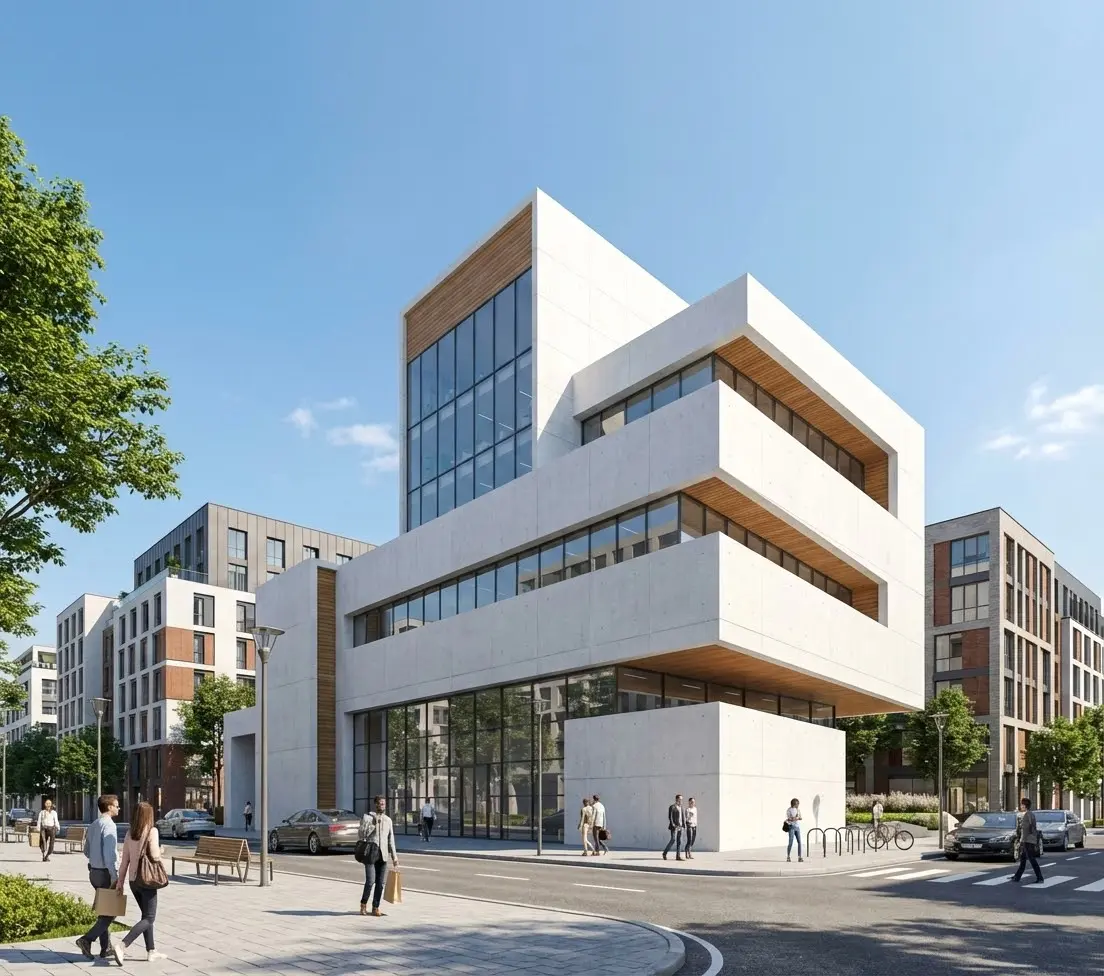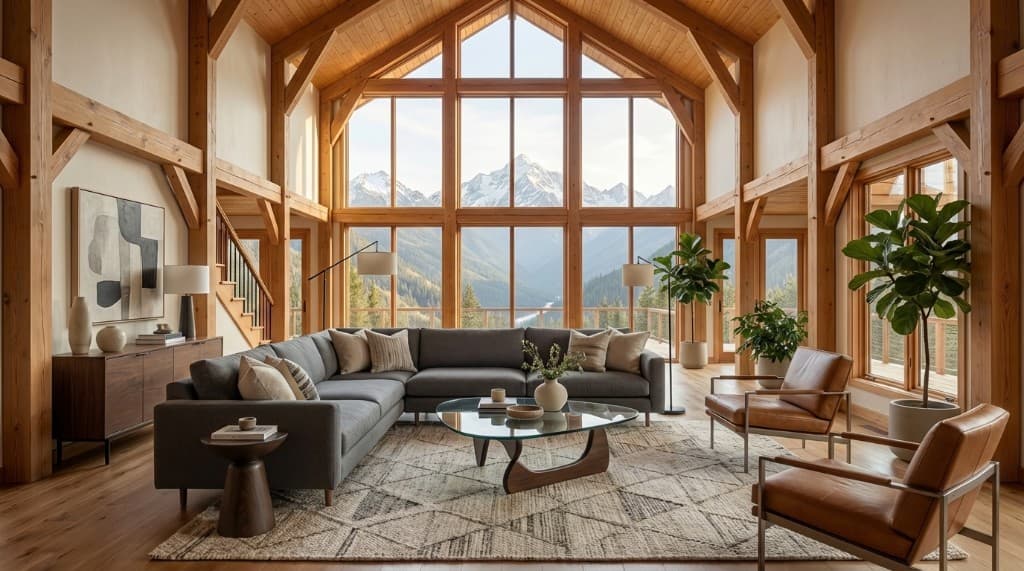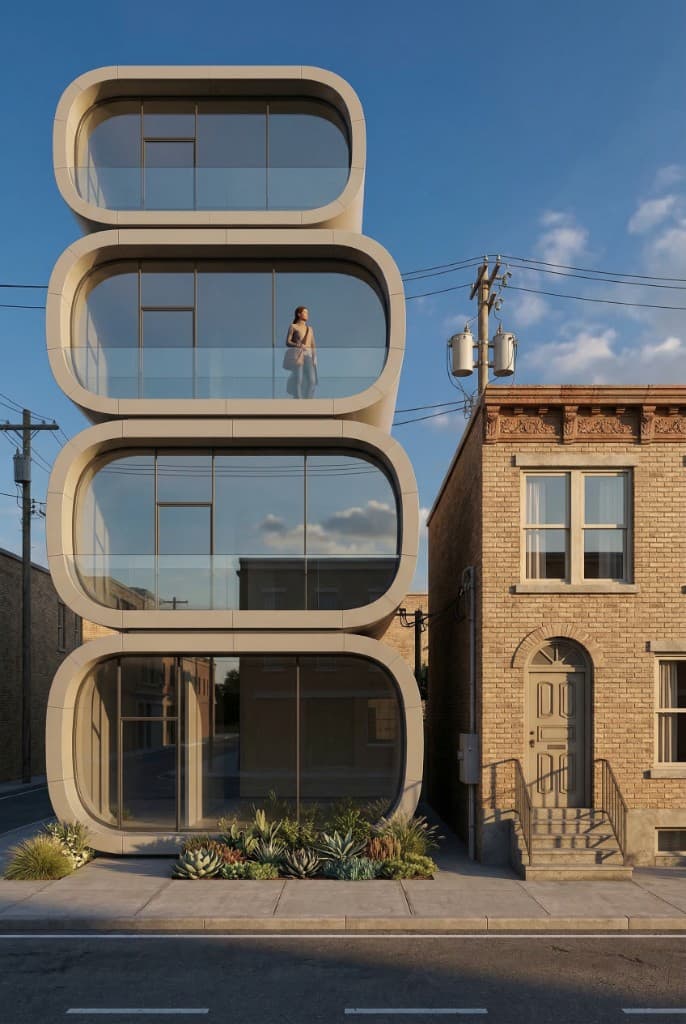
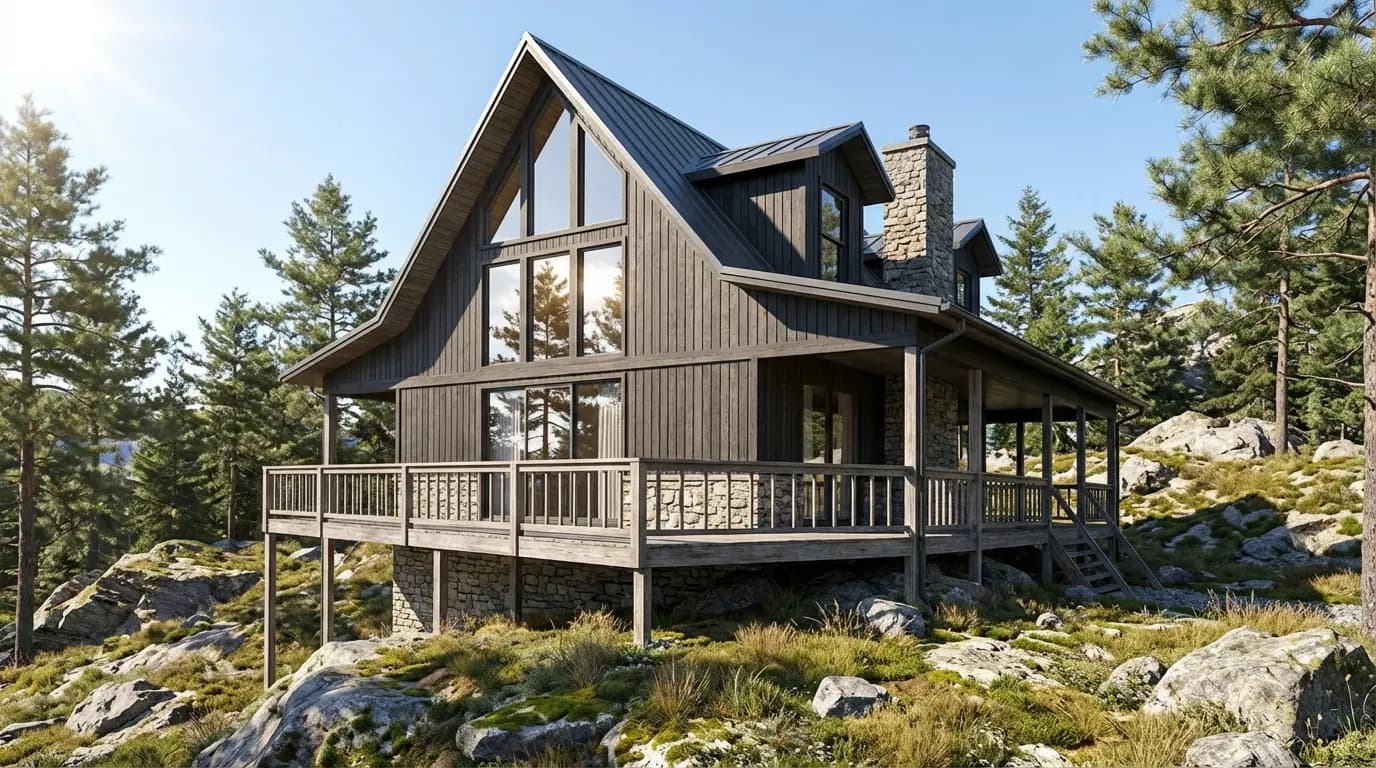
Most people who get frustrating results from AI rendering aren't using the wrong tool — they're making a small number of fixable mistakes that compound each other. A blurry input image, a vague prompt, and a mismatched rendering mode together can turn a capable AI system into something that produces muddy, off-brand, or incoherent outputs. Fix those three things and the results look completely different.
This guide covers the seven most common AI rendering mistakes we see from architects, designers, real estate professionals, and developers using Rendershop — and exactly what to do instead. Whether you're new to AI rendering or have been using it for months, there's almost certainly at least one here that applies to your workflow.
Mistake 1: Uploading a Low-Quality or Poorly Composed Input Image
AI rendering is an image-to-image transformation process. The system interprets your input, understands the spatial layout and main elements, and generates a photorealistic version. This means the quality and composition of what you upload is the single largest determinant of what comes out.
The most common input mistakes are:
- Resolution that's too low. Images below 800px on the short side lose enough structural detail that the AI struggles to accurately interpret the space. Walls merge, furniture becomes ambiguous, and the architecture reads as generic.
- Heavy motion blur or focus issues. A blurry phone photo of a living room hands the AI a signal that's hard to interpret cleanly. The output compensates, but rarely well.
- Bad composition or extreme angles. A fisheye shot of a corner, an extreme close-up of a single fixture, or a photo taken from floor level all constrain the AI to awkward starting geometries. The render inherits the composition of the input.
- Cluttered scenes. An input image full of moving boxes, construction debris, or temporary furniture confuses the AI about what the intended space actually looks like.
The Fix
Shoot or export input images at a minimum of 1200px on the short side. Use a natural, standing-height camera position that shows the room or facade as someone would actually experience it. Clear the space of anything that isn't permanent. For architectural exterior shots, shoot straight-on or at a 45° corner angle — these translate most cleanly into renders. If you're working from CAD or Revit, export a clean perspective view at full resolution rather than a compressed PDF screenshot.
Mistake 2: Writing a Vague or Incomplete Prompt
"Modern living room" is a prompt. It is not a useful one. Vague prompts produce generic outputs because the AI has no specific direction to work with — it fills in every unspecified detail with whatever the most statistically average version of "modern living room" looks like in its training data.
The output is usually technically proficient but characterless: a beige sofa, a neutral rug, warm-white recessed lighting, a blank wall. Nothing wrong with it; nothing memorable about it either.
The Fix
Use the four-part prompt framework: style, materials, lighting, and atmosphere. Each component should be specific. Compare:
Weak: "Modern kitchen"
Strong: "Contemporary open-plan kitchen, matte black cabinetry with brushed brass hardware, white quartzite waterfall island, wide-plank white oak floors, bright natural daylight from floor-to-ceiling windows on the south wall, airy and minimal"
For a deeper breakdown of how to write prompts for every room type and rendering style, see our full guide to writing effective AI rendering prompts.
Mistake 3: Not Specifying Lighting Conditions
Lighting is the single most transformative element in a render — and it's the most commonly omitted detail in prompts. When you don't specify lighting, the AI picks something neutral and unremarkable. The render looks technically correct but emotionally flat.
Lighting specificity works across two dimensions: the quality of light (harsh vs. soft, diffuse vs. directional) and the time of day or light source. Both matter. "Golden hour light streaming through west-facing windows" produces a completely different image than "bright overcast midday" — even from the same input photo.
The Fix
Always include at least one lighting descriptor. High-impact options to try:
- Golden hour, warm afternoon light, sun low on the horizon
- Soft overcast daylight, diffuse north light
- Dramatic dusk exterior, deep blue sky, interior lights glowing
- Bright studio lighting, even illumination, shadow-free
- Moody evening interior, warm pendant lights, soft pools of light
- Crisp winter morning, low-angle sun casting long shadows
Mistake 4: Expecting Geometric Precision from an Image-Based Process
This isn't a mistake in the sense of doing something wrong — it's a fundamental misunderstanding of what AI rendering actually is. When someone uploads an elevation drawing and expects the AI to produce a render that is dimensionally accurate to the millimeter, they will be disappointed and blame the tool when the problem is the expectation.
AI rendering interprets your input and generates a photorealistic image that is consistent with it — but it does not derive geometry from the input the way a traditional CAD renderer does. Window proportions, ceiling heights, and facade details will look plausible and photorealistic, but they are not mathematically derived from your drawings.
The Fix
Match the tool to the task. AI rendering is the right choice for marketing imagery, client concept presentations, real estate listings, renovation visualization, and early-stage design communication — where photographic plausibility matters more than millimeter accuracy. For planning submissions, technical documentation, or fabrication-linked visualization where dimensional accuracy is contractually required, a traditional 3D studio producing a model-based render is the appropriate tool. Knowing the boundary makes both tools more useful, not less.
Mistake 5: Accepting the First Result Without Iterating
AI rendering is a generative process — it produces a sample from a probability distribution, not a deterministic output from a specification. The first result is rarely the best result. Generating one image, deciding it's not good enough, and concluding that AI rendering doesn't work is one of the most common and most avoidable mistakes.
Experienced users of AI rendering generate multiple variations per prompt, compare them, identify which elements are working (composition, materials, lighting) and which aren't, and iterate — adjusting the prompt or the input image based on what they see. The process typically produces a strong result within 3–8 generations, not 1.
The Fix
Budget for iteration from the start. Generate 3–5 variations of your first attempt. Pick the best one and ask: what's working? What isn't? If the materials look right but the lighting is flat, add more specific lighting language to the prompt. If the composition is off, try a different input image angle. One targeted adjustment per iteration round is more effective than rewriting the entire prompt at once — you'll be able to see exactly what changed the output.
Mistake 6: Using the Wrong Mode for the Job
Most AI rendering platforms — including Rendershop — offer multiple distinct modes: full render (transform any space from scratch), edit (targeted material or element changes within a render), virtual staging (furnish and style an empty room), enhance (upscale and sharpen an existing image), and sketch-to-render (turn a line drawing into a photorealistic image). Using the wrong mode for a given task is like using a brush meant for large washes to do detail work.
Common mode mismatches:
- Using the full render mode on a finished, furnished room when you just want to swap the countertop material — the AI will re-imagine the entire space instead of making the targeted change.
- Trying to stage a room that has furniture in it using the virtual staging mode — staging works best on truly empty spaces; cluttered rooms produce inconsistent results.
- Running an elevation sketch through the general render mode instead of sketch-to-render — the sketch-to-render mode is specifically tuned to interpret line work and produce a coherent exterior elevation, while the general mode may treat the sketch as a reference image and produce something unexpected.
The Fix
Match the mode to the task before you set up the prompt. If you want to change one material in an existing render, use the Edit tab — not the main render mode. If you're working from a hand sketch or CAD elevation, use sketch-to-render. If you have an empty room you want to furnish, staging is the right tool. Taking 30 seconds to choose the right mode will save you multiple failed generations and a lot of frustration.
Mistake 7: Overloading the Prompt with Conflicting Instructions
There is a counterintuitive failure mode that trips up users who have learned from Mistake 2 (vague prompts) and overcorrected. Prompts that are extremely long, highly specific, and internally contradictory — "minimalist Scandinavian with rich ornate details, warm dark moody lighting but bright airy feel, modern and rustic simultaneously" — produce incoherent outputs because the AI is trying to satisfy mutually exclusive demands.
The issue isn't length — detailed prompts genuinely help. The issue is contradiction. Opposing style directions, conflicting lighting conditions, and incompatible material combinations confuse the generation process and typically result in an average of the contradictions rather than a successful synthesis.
The Fix
Before submitting a prompt, do a quick internal consistency check: does every style descriptor point in the same direction? Does the lighting choice match the atmosphere you're describing? A good test: if you described the scene to a photographer or set designer, would they know exactly what to build? If the direction is genuinely coherent, a detailed prompt will produce a better result. If it's contradictory, simplify to the core direction first and add detail from there.
Quick Reference: Mistakes and Fixes at a Glance
| Mistake | What You See | The Fix |
|---|---|---|
| Low-quality input image | Blurry details, generic architecture, lost structural elements | 1200px+ short side, clear scene, good composition |
| Vague prompt | Generic, characterless output that looks like stock imagery | Specify style, materials, lighting, and atmosphere |
| No lighting specification | Flat, emotionally neutral image that fails to impress clients | Always name a time of day and light quality |
| Expecting geometric accuracy | Frustration when proportions differ from drawings | Use AI for marketing/presentation; 3D studio for technical submissions |
| Not iterating | One mediocre result; conclusion that AI rendering doesn't work | Generate 3–5 variations, identify what works, adjust and repeat |
| Wrong rendering mode | AI re-imagines the whole space when you wanted one targeted change | Match the mode to the task: edit, stage, sketch, or full render |
| Conflicting prompt instructions | Incoherent output that averages contradictory directions | Check prompt for internal consistency before generating |
Building a Workflow That Gets Results Consistently
Fixing individual mistakes is useful, but the biggest improvement comes from building a repeatable workflow that prevents most of these mistakes from occurring in the first place. Here's the sequence that produces consistently strong results:
- Prepare the input first. Before touching the prompt, ask whether your input image is the best it can be. Correct the angle, resolution, and composition. Clear any clutter. Get this right before anything else.
- Choose the mode before writing the prompt. Confirm you're in the right mode for the task. This takes 10 seconds and prevents entire failed generation runs.
- Write a four-part prompt: style, materials, lighting, atmosphere. Cover all four. Be specific within each. Check for internal contradictions before submitting.
- Generate 3–5 variations. Don't evaluate a single output. Generate a small batch and pick the strongest result from the batch.
- Identify the one thing to improve and adjust. Pick the single most important gap between the best result and what you want. Adjust that one thing. Generate again. Repeat.
- Lock the image, then refine with Edit if needed. Once you have a strong base render, switch to the Edit mode to make targeted refinements — swap a material, adjust a specific element — rather than regenerating the entire scene.
For detailed prompt templates for every scenario — exterior renders, kitchen interiors, bathroom remodels, virtual staging, sketch-to-render — see our complete AI rendering prompts guide.
Frequently Asked Questions
Why does my AI render always look generic, even when I write a detailed prompt?
The most common cause of generic-looking outputs despite detailed prompts is a low-quality or poorly composed input image. If the input doesn't give the AI a strong spatial reading of the space, it falls back on generic interpretations regardless of what the prompt says. The second most common cause is a weak input image combined with a lighting specification that's too neutral — "natural light" is almost as vague as no lighting specification at all. Try naming a specific time of day and light quality alongside a better input image.
How many renders should I expect to generate before getting a result I can show a client?
In a well-structured workflow — good input image, specific prompt, correct mode — most users reach a strong result within 5–10 generations. When one element is off (vague prompt, poor input), it can take significantly more. The most efficient approach is to fix the most obvious problem first (usually the input image or the prompt specificity), regenerate a small batch, and evaluate from there rather than generating many variations from the same weak starting point.
My renders look great individually but inconsistent across a set — how do I fix that?
Consistency across a set of renders is a distinct challenge from producing any single strong image. The key is standardizing your workflow: use the same core prompt structure across all images in the set, shoot or export all input images from similar angles and lighting conditions, and choose a single dominant style direction and stick to it. When you're generating a full room suite (kitchen, living room, master bedroom), keep the material palette and lighting language consistent across all prompts so the images read as a coherent set rather than independent images.
Can I fix a bad render with post-processing instead of regenerating?
Minor issues — slight color grading, brightness adjustment, sharpening — can be addressed in post-processing. But if the core render has structural problems (wrong composition, incoherent materials, flat lighting), post-processing will not rescue it. The better approach is to regenerate from a better starting point. Once you have a strong base render, the Edit mode in Rendershop lets you make targeted material and element adjustments without regenerating the entire scene — that's usually more efficient than external post-processing for architectural imagery.
Does paying for more credits mean better quality per image?
Credit cost in Rendershop is tied to the rendering mode and resolution, not to image quality in any arbitrary sense. The quality of your output is determined by your input image, your prompt, and your choice of mode — all of which are in your control. More credits simply lets you run more generations and iterate more extensively. The best way to get better results isn't to spend more on a single generation — it's to invest those credits in iteration from a better starting point. See Rendershop pricing for current credit rates by mode.
The Bottom Line
AI rendering is not difficult — but it rewards a systematic approach. The mistakes in this guide aren't failures of the technology; they're failures of setup, expectation, or workflow. Each one is fixable with a small, specific adjustment.
Start with the input image. Everything downstream depends on it. Then specify your prompt with real detail — style, materials, lighting, atmosphere. Choose the right mode for the task. Generate a small batch instead of one image. Iterate on what you see, one variable at a time.
Do those five things consistently and the gap between what you're getting and what you want will close quickly.
Put It Into Practice
Upload a photo, sketch, or elevation and apply what you've learned. Try Rendershop free with 50 credits — no credit card required.
— The Rendershop Team