A lot of design work now starts in a conversation with an AI assistant. You talk through a concept, draft a client email, compare cladding options, or sanity-check a brief. Until now, the moment you wanted to actually see the idea, you had to leave that conversation, open a rendering tool, upload your file, and rebuild the context you'd just spent twenty minutes explaining.
Today rendershop works inside Claude, and with any assistant that supports the Model Context Protocol (MCP). Connect your rendershop account once, and your assistant can render a sketch, make targeted edits, virtually stage a room, upscale an image, or turn a still into a short video. The results appear right in the chat, and every image is saved to your rendershop projects.
What Is MCP, and Why Does It Matter for Rendering?
The Model Context Protocol is an open standard that lets AI assistants use outside tools. A service publishes an MCP server describing what it can do, such as "render this image" or "list my projects." The assistant reads those descriptions and decides when to call them while it helps you. Claude, ChatGPT, and a growing list of other apps and developer tools support MCP, so one connector can serve many assistants.
For rendering this changes how the work is shaped. Your assistant already understands the project: the client, the brief, the materials you've been weighing. With rendershop connected, it can turn that understanding into a render prompt and run it for you. You describe the outcome in your own words and the assistant handles the settings.
What You Can Do From the Chat
The connector gives your assistant the same tools you use in the rendershop studio, running the same models with the same prompt engineering. A render requested from a chat looks just like one made in the app.
| Ask for | What happens | Credits |
|---|---|---|
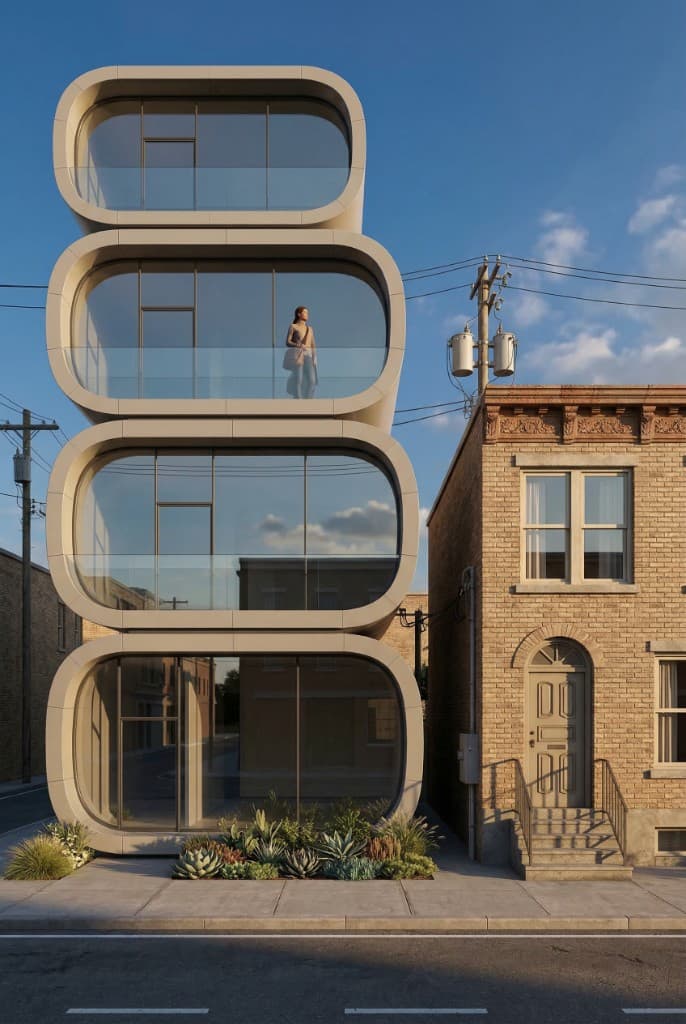
| Sketch or model to render | A sketch, SketchUp/Revit/Blender screenshot, or photo becomes a finished render that keeps your geometry. Choose style, lighting, camera angle, weather, and surroundings. | 10 |
| Targeted edits | Swap a material, remove an object, or change one element while everything else stays identical. | 10 |
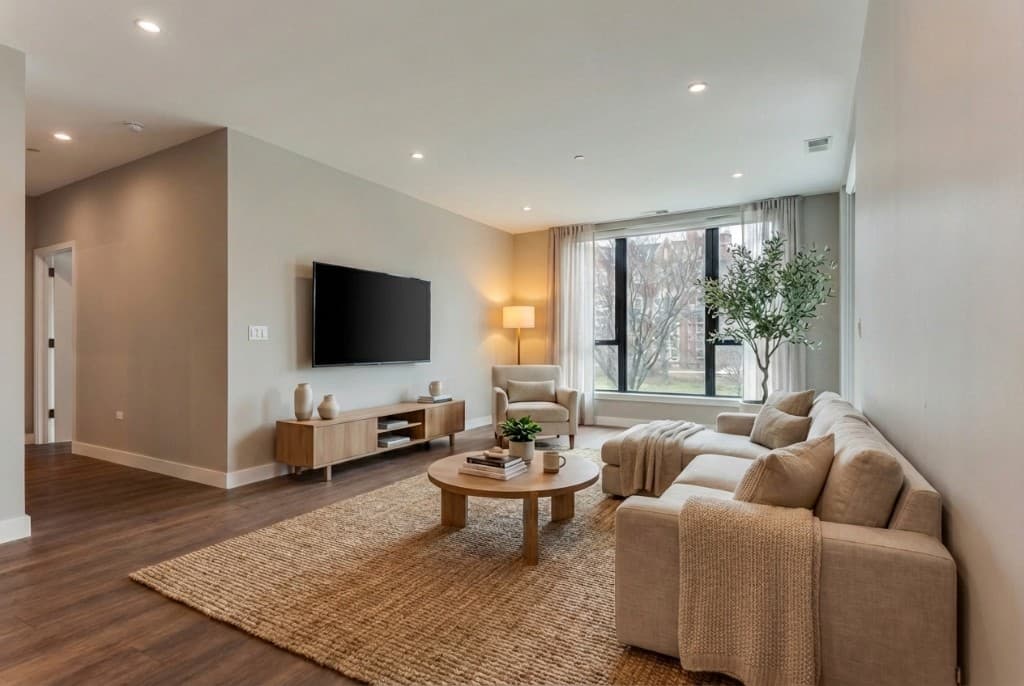
| Virtual staging | Furnish an empty interior by room type, style, palette, and density without touching walls, floors, or windows. | 10 |
| Upscale | Enlarge a result 2× or 4× with added detail for print or large screens. | 1 |
| Video | Animate a still render into a 4–12 second clip with a camera move such as a drone shot, orbit, or slow zoom. | 5 per second |
Your assistant can also check your credit balance, browse your existing projects, and pull any earlier image back in as the starting point for a new variation.
What It Looks Like in Practice
Here's a typical exchange. You tell Claude: "Render my sketch of the lake house: photorealistic, late-afternoon golden light, natural landscaping, and keep the cars in the driveway."
- An upload box appears in the conversation. Choose the sketch from your computer or phone, or drag it in. The photo goes straight to your rendershop account and becomes a new project, and you never leave the chat.
- Claude confirms the plan and the cost. It summarizes the style, materials, and setting it will use and tells you the render costs 10 credits.
- The render shows up in the chat. Most images come back in a minute or two. They appear full width with a download button and a link to open the project in rendershop.
- You keep iterating in plain language. Try "Now a dusk version with the interiors lit" or "Make the cedar cladding warmer." You can also ask it to upscale the render to 4K. Each result lands in the same project.
Because the assistant keeps the whole conversation in view, follow-up requests stay coherent. You don't have to re-explain the project each time. If you're new to describing renders, our guide to AI rendering prompts covers the vocabulary that gets the best results. With an assistant in the loop, you can also just describe what you want and let it translate.
How to Connect rendershop to Claude
Setup takes about a minute and needs a rendershop account. A free account works to start. The rendershop MCP page has the full tool list, example prompts, and setup steps for each assistant.
- In Claude, open Customize → Connectors and choose Add custom connector.
- Name it rendershop and enter the server URL:
https://rendershop.ai/api/mcp - Click Connect and sign in with your rendershop account. You don't need an API key or client secret.
- Start a new chat and ask for a render. The first time an upload box or result card appears, Claude asks permission to display it. Choose Allow.
The connector works in Claude on the web, in the desktop app, and on mobile. Developers can add the same URL to Claude Code with claude mcp add --transport http rendershop https://rendershop.ai/api/mcp.
What About ChatGPT?
ChatGPT also supports MCP servers as custom connectors, including the sign-in method rendershop uses. ChatGPT treats custom connectors as a developer feature, though. You turn on Developer mode in ChatGPT's settings, then add a connector using the same URL, https://rendershop.ai/api/mcp.
Which plans can do this matters. Generating a render is a "write" action because it creates something and spends credits. OpenAI currently limits write actions in custom connectors to certain plans, such as Business, Enterprise, and Edu workspaces, and the list changes. Check OpenAI's current documentation for your plan before you set it up. If your team works mainly in ChatGPT, let us know at info@rendershop.ai. We're expanding support as these platforms open up.
Credits, Privacy, and Control
- Same credits as the app. Renders requested from a chat use your normal rendershop credits at the same rates. If a generation fails, the credits are refunded automatically, just as in the studio. Plans and credit amounts are on the pricing page.
- No surprise video bills. Videos are the most expensive request, so the assistant has to confirm the cost with you first. rendershop refuses a video that would cost more than the amount you agreed to, before any credits are spent.
- Your account, your library. The connector signs in with your own rendershop account and only sees your projects. Uploads and results are saved there, so you can open any of them in the full studio later.
- Easy to disconnect. You can remove the connector in your assistant's settings at any time, which ends its access to your account.
Who Gets the Most Out of It
Architects and designers who already use an assistant for briefs, research, and client communication can now sketch, render, and revise in the same thread. Early concept iterations take minutes instead of a context switch each time.
Real estate agents and photographers can stage a vacant listing or make a twilight version of an exterior while writing the listing copy in the same conversation. Our guide to virtual staging for real estate covers what makes staged photos convincing.
Builders and developers can answer a client's "what would it look like with a metal roof?" on the spot. Pull up the project, ask for the edit, and share the result before the call ends.
Frequently Asked Questions
Do I need a paid rendershop plan to use the connector?
No. Any rendershop account can connect, including a free one. Each request uses credits from your plan exactly as it would in the app, and you can ask your assistant how many credits you have left at any time.
Can I use an image I attached to the chat?
AI assistants don't pass attached files to connectors directly, so rendershop shows an upload box right in the conversation instead. Pick the image there and the assistant continues automatically. In apps that can't show the box, the assistant gives you a one-time upload link instead.
Are chat renders lower quality than renders made in the app?
No. The connector runs the same rendering models and the same prompt engineering as the rendershop studio, at up to 4K resolution.
Where do my results go?
Every image is saved to a project in your rendershop account. Uploads start a new project, and follow-up renders join the same one. Videos display in the chat with a download button. Save them soon, because the video link is temporary.
Which AI assistants does rendershop work with?
rendershop works in Claude on the web, desktop, and mobile, and in Claude Code. It's built on the open MCP standard, so it can also be added to other MCP-compatible assistants, including ChatGPT on plans that allow custom connectors with write actions.
The Bottom Line
Rendering used to be a separate step at the end of a conversation. With the rendershop MCP connector it becomes part of the conversation. You describe what you want and see it moments later, then refine it in plain language, and everything is saved to your rendershop library. If you already use Claude in your design work, it's worth a minute to connect.
Connect rendershop to Your AI Assistant
Create a free rendershop account, then add https://rendershop.ai/api/mcp as a connector in Claude and start rendering from the chat.
— The Rendershop Team